


L'agenda est utilisé pour enregistrer tous les appels confirmés et les rendez-vous spéculatifs, les réunions et les tâches. Il permet de planifier et de réviser l'emploi du temps.
Les contacts et les réunions sont automatiquement saisis dans l'agenda au fur et à mesure qu'ils sont enregistrés pour le client ou le site, soit directement à partir des dossiers, soit à partir de la liste des appels à l'action. Ils sont utilisés pour les rapports d'activité.
Tasks are independent of contacts and meetings and are entered into the diary manually. Reminders can be set which will display each time a new Actis session is opened.
Le journal peut être affiché dans différents formats, être exporté sous forme de fichier csv qui s'ouvrira dans Excel ou être exporté sous forme de fichier pdf.
L'agenda est accessible à partir du bouton "large" de la page d'accueil ou à partir de la rubrique "Activités" de la barre de menu.
L'agenda s'ouvre par défaut sur une semaine. Survolez chaque entrée de l'agenda pour voir les détails complets de chaque appel, réunion ou rappel.

Les boutons de navigation et d'affichage de l'agenda sont disponibles en haut de l'écran :
- Précédent (flèche gauche) : Permet de passer à la période précédente en fonction de la mise en page sélectionnée. Si l'agenda affiche des semaines, l'affichage passe à la semaine précédente. Si l'agenda affiche des jours, l'affichage passe au jour précédent.
- Suivant (flèche droite) : Permet de passer à la période suivante en fonction de la mise en page sélectionnée. Si l'agenda affiche des semaines, l'affichage passe à la semaine suivante. Si l'agenda affiche des jours, l'affichage passe au jour suivant.
- Aujourd'hui: Passe à la date du jour, quelle que soit la période d'affichage sélectionnée.
- Calendrier: Choisir la date d'affichage.
- Un jour: Fait basculer le journal dans une vue quotidienne.
- Semaine ouvrable: N'afficher que les jours de la semaine de travail (du lundi au vendredi).
- Semaine complète: Affiche la semaine entière.
- Mois complet: Affiche le mois entier.
- Agenda: Affiche une liste de vos appels, réunions et rappels pour la semaine. Passez la souris sur l'entrée pour afficher plus d'informations.
The diary entries are colour coded to help distinguish between types. The colours are assigned automatically by Actis and cannot be changed. Under the Actions tab, click the Open button to view the legend key.
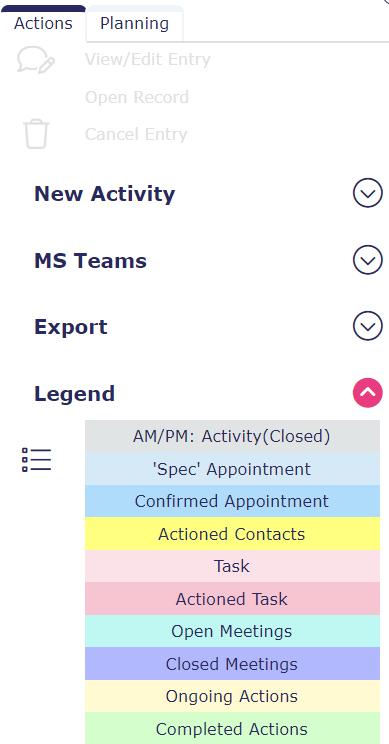
AM/PM : Activité (fermée): n'apparaîtra qu'une fois que vous aurez saisi les informations relatives à la semaine de fermeture, nécessaires à l'établissement des rapports.
Important: Depending on your system set-up, Close Week reporting may be mandatory in which case the option to provisionally close the week will appear as soon as a call or meeting is saved to the diary.
The Action tab also allows the following:

- Close week: Close the displayed week to confirm all activities and days worked.
- Show Meeting Contacts: Displays the customer information for each meeting attendee which appears as multiple entries for the same meeting
- View/Edit Entry: Select a diary entry to open the entry record. Note: This action item is dynamic and will refer to the diary entry selected, i.e. it may be View/Edit Task or View/Edit Meeting, etc.
- Open Record: Select a diary entry to open the entry record. Note: This action item is dynamic and will refer to the diary entry selected, i.e. Open Customer, Open Location, etc.
- Delete Record: Select a diary entry to delete the entry record. Note: This action item is dynamic and will refer to the diary entry selected, i.e. Delete Contact, etc. The deletion is permanent and removes the record from Actis. It cannot be found by searching for inactive entries using Data Explorer.
Add new activity to the diary directly
Choose a timeslot on the diary and right-click to select from the pop-up menu OR under the Actions tab click the Open button to activate the New Activity menu items.

- Record a Customer Call: Opens the customer selection list and will add your selected customer to a customer contact record.
- Record an Unnamed Call: Opens the location selection list and will add you selected location to an unnamed contact record.
- Add Meeting: Opens a new meeting record
- Add Task: Opens a new task record
Start your Microsoft Teams meeting directly from the diary
Select the planned MS Teams contact or meeting in the diary (there is no need to open it), and under the Actions tab click the Open button to activate the MS Teams menu items. The menu items are dynamic so what you will see will depend on whether the attendee (customer) has an email address and/or given consent, and on whether the date is before or after the planned MS Teams call.

- Send Invitation: Opens an email so that you can add the subject and any necessary text. The MS joining details will be added when the invitation is sent and added to your Outlook calendar automatically
- Send Update: Opens the MS Teams meeting so you can edit the date/time
- Join Teams Meeting: Starts the MS Teams meeting and records the start and end times directly to the diary entry
- Send Cancellation: Cancels the MS Teams meeting and removes it from your Outlook calendar. The entry remains in the Actis diary for you to edit, inactivate or delete as appropriate.
Export the diary
Export the diary in the format you choose. Under the Actions tab click the Open button to activate the Export menu items.

Dependent on your Actis set-up, some or all of the following options may appear:
- Exporter au format PDF: Exporte le journal au format PDF, prêt à être imprimé. Sélectionnez la plage de dates pour l'exportation.
- Exporter au format CSV: exporte le journal au format CSV, qui peut être ouvert dans Excel. Sélectionnez la plage de dates pour l'exportation.
- Export to Calendar: Exports the diary to your calendar (Outlook). The export is “one-way”, i.e. if you update your calendar the changes will not be reflected in the Actis diary.